
How to Convert HEIC to JPG on Windows and Mac (Fast & Free)
Struggling with Apple's HEIC format? Learn how to convert your photos to widely compatible JPGs in seconds without losing quality.
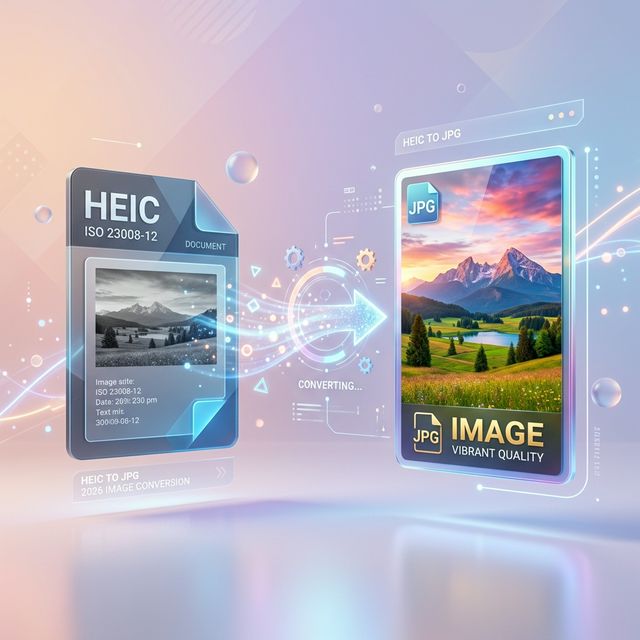
How to Convert HEIC to JPG on Windows and Mac
Since Apple introduced the HEIC (High Efficiency Image Coding) format, many users have found themselves in a compatibility pinch. While HEIC is great for saving space on your iPhone, it doesn't always play nice with older Windows versions, certain web uploaders, or professional editing software.
In 2026, the need for a quick, reliable conversion to JPG is still a common pain point. Here is everything you need to know about converting your files safely and for free.
Why HEIC exists (and why you might want to switch)
HEIC is technically superior to JPG. It supports 16-bit color (vs 8-bit) and uses advanced compression that keeps file sizes roughly 50% smaller than an equivalent JPG. However, compatibility is king. If you're sending photos to a client or uploading to a government portal, JPG is the "safe" choice.
Method 1: The Privacy-First Way (Postification)
For the fastest results without installing software, use a browser-based converter that processes files locally.
- Navigate to the Image Converter section.
- Drag and drop your HEIC files.
- Select "JPG" as the output.
- Download your converted files instantly.
Because the conversion happens in your browser's memory, your personal photos are never uploaded to a server—a critical consideration in 2026.
Method 2: Native Conversion on macOS
If you're on a Mac, you already have the tools built-in:
- Open the HEIC image in Preview.
- Go to File > Export.
- Select JPEG from the Format dropdown and click Save.
Method 3: Windows 11 Photos App
Modern Windows versions have caught up:
- Right-click your HEIC file in File Explorer.
- Select Edit with Photos (or simply open it).
- Click the "..." menu and choose Save As.
- Pick
.jpgfrom the file extension options.
Pro Tip: Batch Conversion
If you have hundreds of photos from a vacation, manually exporting them is a nightmare. Look for tools that support Batch Processing. Postification's Pro features allow you to drop an entire folder of HEIC images and get a single ZIP file containing all your new JPGs in seconds.
Final Thoughts
Don't let file formats slow you down. While HEIC is the future of mobile photography, JPG remains the standard for the web. Use the tools mentioned above to bridge the gap effortlessly!